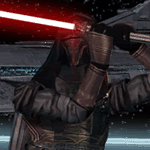
March 7, 200620 yr I can't remember who, but someone wanted a Darth Vader with black eyes (instead of the funky reddish color). I wanted them too, but was too lazy to change it until now. So here it is, a black-eyed Darth Vader. http://i61.photobucket.com/albums/h65/NightshadowDragon/RyuuKageSIG.jpg http://i61.photobucket.com/albums/h65/NightshadowDragon/AoSW-JCW_Banner.jpg
March 7, 200620 yr it was me!!! very good! can you post a screen of a screen of Lord Vader with black eyes?? thanks! how do I use it? Edited March 7, 200620 yr by Darth Vader - I have you now! - Obi-wan never told you what happened to your father... - If you only knew the power of the Dark Side... - Evacuate?In Our Moment of Triumph?*BOOM*"Visit Spriters Resource at their new home!"
March 7, 200620 yr Author Just follow the instructions I posted. Make an ART folder in your Data folder, make a TEXTURES folder in that, and put the new Darth Vader texture in that folder, like this: Gamedata/Data/ART/TEXTURES/EI_VADER.dds http://i61.photobucket.com/albums/h65/NightshadowDragon/RyuuKageSIG.jpg http://i61.photobucket.com/albums/h65/NightshadowDragon/AoSW-JCW_Banner.jpg
March 8, 200620 yr ah yes now I think I got it - I have you now! - Obi-wan never told you what happened to your father... - If you only knew the power of the Dark Side... - Evacuate?In Our Moment of Triumph?*BOOM*"Visit Spriters Resource at their new home!"





Create an account or sign in to comment